Ergonomic Home Office Setup: A 5-Zone Guide That Works
24th March, 2026
Your ergonomic home office setup is probably wrong. A PMC study found that 61.2% of home workers reported musculoskeletal discomfort while working remotely. Nearly half were working from dining tables or bedrooms.
An ergonomic home office setup comes down to five zones: chair, desk, screen, peripherals, and environment. Get these five right and you fix the root causes of back pain, neck strain, and eye fatigue.
This guide walks through each zone from the ground up. You’ll get exact measurements and product picks you can act on today.
Why Most Home Offices Hurt You (and How to Fix Yours)
The shift to remote work happened fast. Desks were kitchen tables. Chairs were whatever was available.
And most people never upgraded beyond that first improvisation.
Here’s what that costs your body. The CCOHS confirms that a too-high monitor causes worse neck strain than a too-low one.
A chair without lumbar support adds up to 90% more pressure on your lower spine than standing does. That finding comes from research cited in the Journal of Physical Therapy Science.
And poor lighting forces you to lean forward, crane your neck, and squint. Most people don’t even notice they’re doing it.
An ergonomic chair in a bad setup is still a bad setup.
That’s why Merryfair’s approach starts with the full workspace, not just the seat. The 5-Zone Home Office Setup, developed here, breaks the problem into five layers you tackle from the ground up.
Can a bad home office setup cause back pain?
Yes. The evidence is clear.
A 2023 study in the International Journal of Environmental Research and Public Health found a striking gap. Remote workers with poor setups had 41% higher rates of lower back pain than office-based peers.
The culprit isn’t one single item. It’s a wrong-height chair, a misaligned monitor, and a badly sized desk all working against you at once. Hour after hour.
What does an ergonomic workstation actually look like?
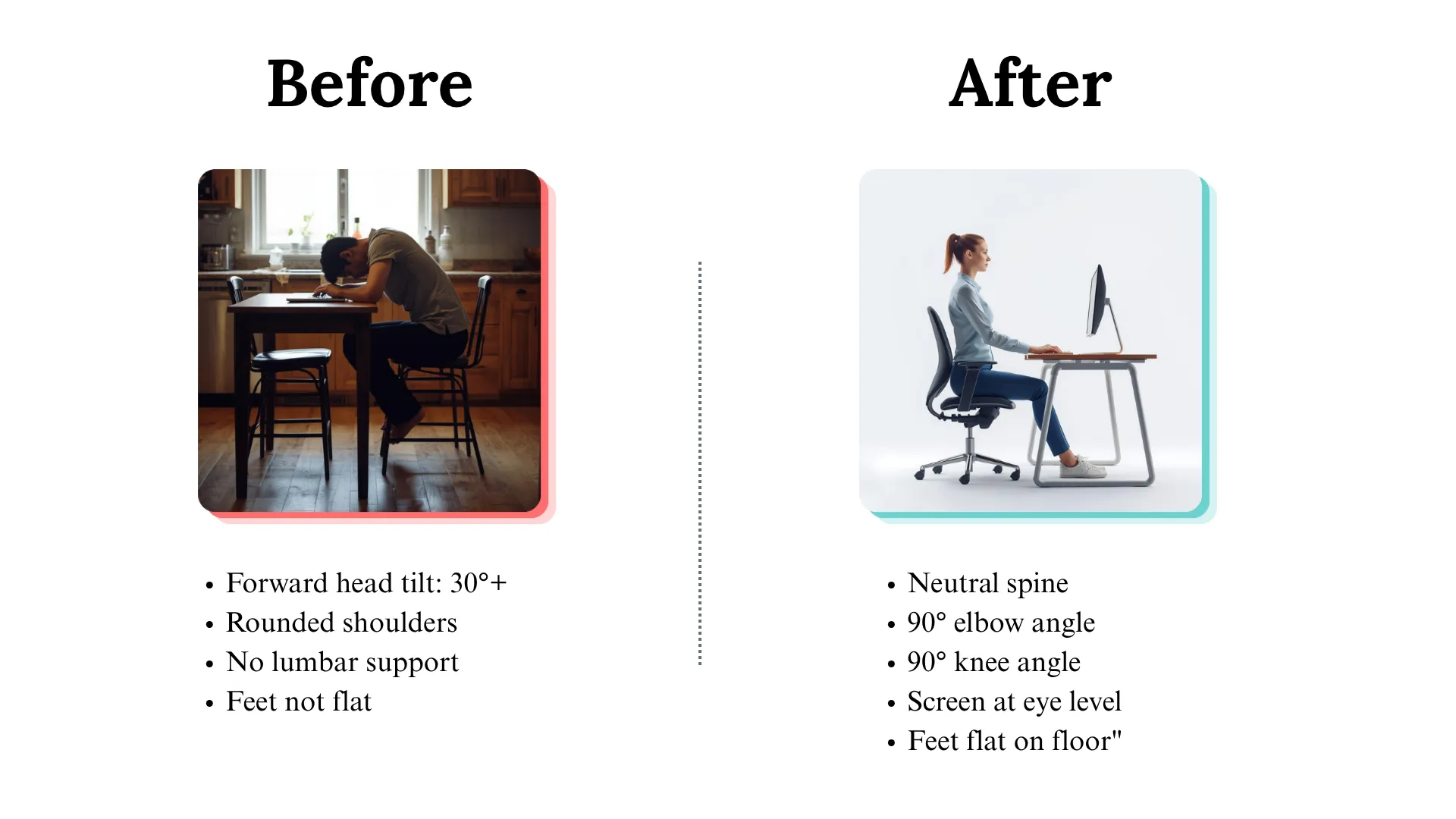
An ergonomic workstation holds your body in a neutral position. That means feet flat, knees near 90 degrees, elbows near 90 degrees, screen at eye level, and wrists floating level.
No single product achieves this alone. It’s the relationship between chair, desk, monitor, and accessories that creates or destroys neutral posture.
Zone 1: Choosing and Adjusting Your Chair
Your chair is the foundation. Every other ergonomic measurement builds from your seated position.
Set seat height so your feet rest flat on the floor. Your thighs should sit parallel to the ground, with knees at roughly 90 degrees.
If you’re between 160cm and 180cm tall, most adjustable chairs cover this range. Outside that range, check the seat height spec before buying.
Match your chair to your sitting hours, not your budget ceiling.
What is the correct chair height for an ergonomic desk setup?
The correct chair height aligns the backs of your knees with the seat edge. Your feet should rest flat on the ground.
For most adults, this falls between 40cm and 52cm from floor to seat. If your desk is too high after adjusting the chair, add a footrest. Don’t raise the seat and lose your neutral hip angle.
Which chair features matter most for all-day sitting?
Three features separate a real ergonomic chair from a marketing label.
- Adjustable lumbar support that matches the curve of your lower spine. Non-negotiable for sessions over four hours.
- Seat depth adjustment so the seat pan doesn’t press behind your knees. That pressure restricts blood flow.
- Synchro-tilt mechanism (backrest and seat move together as you shift). This keeps support consistent through posture changes.
Height-adjustable armrests round out the essentials. For a deeper comparison of chair types and work patterns, see Merryfair’s guide on how to choose the right ergonomic chair for your work style.
A mesh-back task chair gives remote workers the best balance of support and airflow for 6-8 hour days. You can compare ergonomic chairs across every budget tier to find your sweet spot.
Zone 2: Setting Your Desk at the Right Height
Your desk’s job is to let your elbows rest at 90 degrees. Nothing more. Nothing less.
Most standard desks sit at 73-76cm. That works for people roughly 170cm to 185cm tall.
Everyone else is adapting their body to the desk. That’s the wrong direction.
Do I need a sit-stand desk for my home office?
You don’t need one. But if you sit more than six hours daily, a height-adjustable desk earns its price fast.
Standing all day is not the opposite of sitting all day. Alternating is.
Research by Husemann et al. and Garrett et al. found that workers who switched between sitting and standing reported 20-32% less upper-body discomfort. The benefit comes from changing position, not from standing itself.
Merryfair’s Launch sit-stand desk adjusts with a button press. It pairs directly with their ergonomic chairs to keep alignment consistent between positions.
How to find your ideal desk height in 60 seconds
- Sit in your chair with feet flat and thighs parallel to the floor.
- Let your arms hang relaxed at your sides.
- Bend your elbows to 90 degrees.
- The height where your forearms float level is your ideal desk surface.
- If your fixed desk is too high, raise your chair and add a footrest.
That five-step check takes one minute. It prevents years of shoulder tension.
Zone 3: Positioning Your Screen to Protect Your Neck and Eyes
Your neck follows your eyes. Position the screen correctly and your posture follows.
This zone trips up more people than any other. Especially laptop users.
How high should my monitor be for good posture?
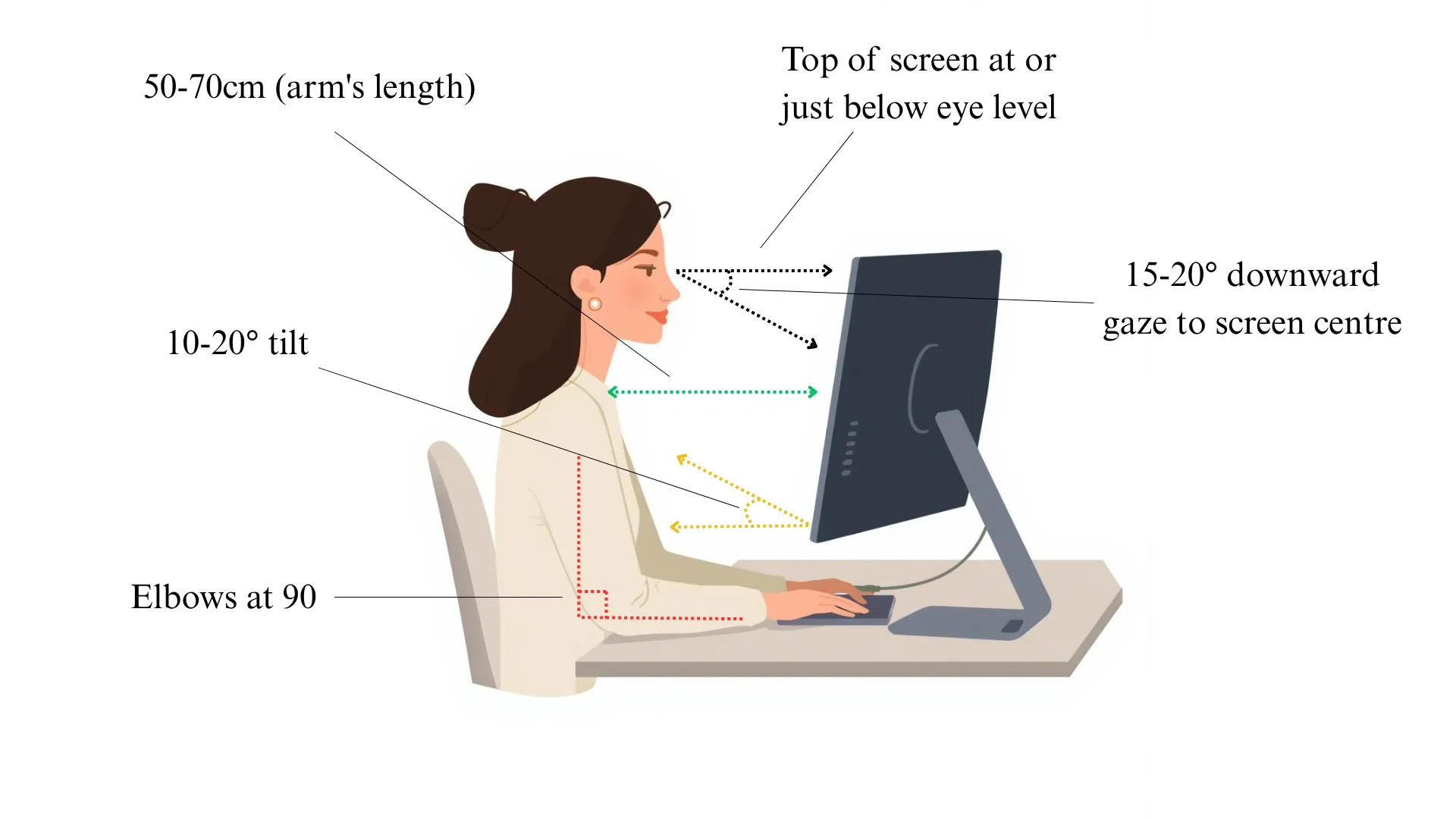
The CCOHS recommends placing the top of your screen at or just below eye level. That creates a gentle 15-20 degree downward gaze to screen centre.
Place the screen about an arm’s length away (50-70cm). Tilt it back 10-20 degrees.
Field data from ergonomics programmes shows something worth knowing. Correcting monitor height alone cuts neck and shoulder discomfort by 20-30% within weeks.
| Setup Type | Screen Height | Distance | Extra Gear Needed |
|---|---|---|---|
| External monitor on desk | Top of screen at eye level | Arm’s length (50-70cm) | Monitor arm or stand |
| Laptop on desk (no stand) | Too low by 15-25cm | Too close | Laptop stand + external keyboard |
| Dual monitors | Primary centered, secondary angled 20-30° | Both at arm’s length | Dual monitor arm |
What about laptop users who don’t have an external monitor?
A laptop on a flat desk forces your neck to tilt forward 30+ degrees. Over eight hours, that adds kilograms of load on your neck (the technical term is cervical spine).
The fix is a laptop stand that raises the screen to eye level. Pair it with an external keyboard and mouse.
This one change (often under $30) delivers the single largest posture gain per dollar in this entire guide.
Zone 4: Keyboard, Mouse, and the Details That Add Up
Peripherals feel like afterthoughts. They’re not.
The PMC study cited earlier tells a specific story. Home workers using built-in laptop keyboards reported higher wrist and shoulder pain on their dominant side. The cause: reaching outward to use a poorly positioned trackpad or mouse.
Where should my keyboard and mouse sit for proper wrist alignment?
Place both on the same surface, at elbow height. Your wrists should float level, not angled up or down.
Your mouse should sit directly beside the keyboard. Don’t place it off to the side where you have to reach for it. That outward reach loads the shoulder over time.
If your chair has adjustable armrests, set them to lightly support your forearms. They shouldn’t push your shoulders up. Merryfair’s WAU’s sports-inspired lumbar and recline system includes multi-directional armrests for this exact purpose.
Are ergonomic keyboards and mice worth it?
For most people working under six hours a day, a standard keyboard and mouse set up correctly is enough.
But if you’re already feeling wrist pain or tingling, a split keyboard and vertical mouse can help. They reduce strain on the nerves and muscles running through your forearm. Consider them a targeted fix, not a universal requirement.
Zone 5: Lighting, Layout, and the 20-20-20 Rule
Here’s where most guides stop. And it’s exactly where the gap between a decent setup and a great one opens up.
The right amount of light in a home office is less than you think.
What lighting is best for a home office?
The IES recommends 300-500 lux for general office work. That’s moderate. Most home offices get this wrong in both directions.
Layer your lighting in three tiers. Ambient light (ceiling or a side window) provides the base.
Task lighting (a desk lamp opposite your writing hand) covers your documents without hitting the screen. Your monitor brightness should match the room, not overpower it.
Position your desk at a 90-degree angle to windows. Never face a window directly (glare) or sit with one behind you (screen reflections).
How often should I take breaks when working from home?
The best posture is always the next posture.
The CCOHS recommends the 20-20-20 rule for eye strain. Every 20 minutes, look at something 6 metres away for 20 seconds.
But your body needs movement beyond your eyes.
- Every 30 minutes, shift position. Stand if you’ve been sitting. Sit if you’ve been standing.
- Every 60 minutes, walk for 2-3 minutes.
- Every 2 hours, stretch your shoulders, hips, and wrists.
These aren’t productivity killers. They’re productivity protectors.
How to Build an Ergonomic Home Office on a Budget
Not everyone can overhaul a workspace in one purchase. Here’s the priority order, ranked by impact per dollar.
What should I buy first if I can only afford one upgrade?
- Laptop stand + external keyboard and mouse (~$30-50). The highest-impact posture fix for laptop users.
- Ergonomic chair with lumbar support. This is worth spending real money on. Even affordable ergonomic chairs that deliver real support under RM1,000 outperform a $2,000 gaming chair without adjustable lumbar.
- Desk lamp with adjustable arm (~$20-40). Fixes lighting without rewiring anything.
- Monitor arm (~$30-80). Nails screen height regardless of desk type.
- Height-adjustable desk. The biggest investment, but the last one you need on a tight budget. A properly set fixed desk with a good chair works fine.
An ergonomic home office doesn’t require a designer budget. It requires the right sequence. Start from the chair and work outward.
Your Setup Only Works If You Actually Move
You now have the 5-Zone framework. Chair, desk, screen, peripherals, and environment.
Nail each zone and you’ve eliminated the structural causes of most home office discomfort.
But here’s the thing nobody tells you. (The part worth sitting with.) Even a perfect setup can’t protect a body that doesn’t move.
Ergonomics creates the conditions for comfort. Movement sustains it.
So build the zones. Set the heights. Fix the lighting.
Then stand up every 30 minutes. The best ergonomic investment you’ll ever make is the habit of not staying still.
Ready to start with the foundation? Browse Merryfair’s full ergonomic seating collection or visit a showroom to test the fit before you commit.
Frequently Asked Questions About Ergonomic Home Office Setups
How do I set up an ergonomic home office on a budget?
Start with the highest-impact, lowest-cost change: a laptop stand with an external keyboard and mouse. Then invest in an ergonomic chair with adjustable lumbar support. Add a desk lamp and monitor arm when budget allows. Prioritise what touches your body the most hours per day.
What is the correct desk and chair height for ergonomics?
Set your chair so your feet rest flat with knees at about 90 degrees. Your desk should let your forearms float level with elbows bent at 90 degrees. For most adults, chair height falls between 40-52cm and desk height around 73-76cm. Adjust the chair first, then match the desk.
What’s the best chair for working from home all day?
Look for adjustable lumbar support, seat depth adjustment, a synchro-tilt mechanism, and height-adjustable armrests. Mesh-back task chairs offer the best mix of support and airflow. Match features to your sitting hours: basic adjustability for under four hours, full feature set for six-plus.
How high should my computer screen be?
The top of your screen should sit at or just below eye level. Your gaze should land on the upper third of the display. That creates a slight 15-20 degree downward viewing angle. Place the monitor about an arm’s length (50-70cm) from your eyes.
Does a standing desk replace the need for an ergonomic chair?
No. A standing desk complements an ergonomic chair. Research shows the benefit comes from alternating between sitting and standing. You still need a supportive chair for your seated hours. The best setup combines both for maximum flexibility.
MORE BLOGS
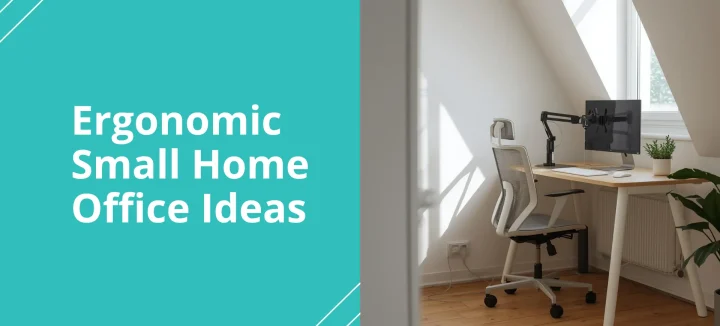
Small Home Office Ideas That Protect Your Back and Save Space
Small home office ideas don’t need to start with Pinterest boards and paint swatches. They need to start with your spine. A PMC study found that 61.2% of home workers reported musculoskeletal discomfort while working remotely, and over half were working from dining tables or bedrooms. The fix isn’t a bigger room. It’s a smarter […]
Read More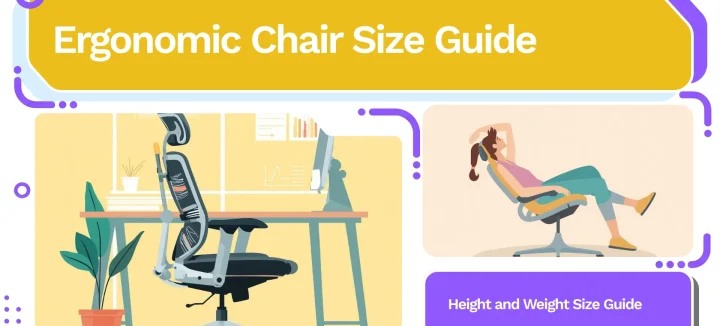
Your Ergonomic Chair Size Guide for Every Height and Weight
An ergonomic chair size guide should start with your body, not a product page. About 40% of the working population falls outside the “standard” range most chairs target. That means your chair might look ergonomic. It could still miss your body entirely. Your ideal chair size comes down to three numbers. Popliteal height (floor to […]
Read More
Office Chair Cost Calculator: Your True Cost Per Sit
An office chair cost calculator reveals something most Malaysian buyers overlook: the daily price of sitting. Divide any chair’s price by the total sits across its lifespan. That one number is the cost per sit. For Malaysian workers averaging 45 hours per week at a desk, the math favours mid-range ergonomic chairs over budget options […]
Read More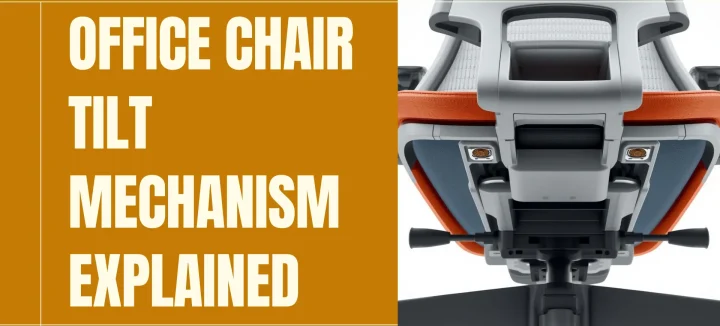
Office Chair Tilt Mechanisms: What Synchro Tilt Really Does
An office chair tilt mechanism is the hidden hardware under your seat. It controls how your chair moves when you lean, recline, or shift weight. It’s the single spec that separates a stiff, uncomfortable chair from one that supports you through an eight-hour workday. Synchro tilt has become the standard in mid-to-high-end ergonomic seating. It […]
Read More